Combined alarm conditions

Step 1 – Start the wizard to create a new condition

In addition to single alarm conditions, it is now also possible to configure combined alarm conditions. A single alarm condition consists of one requirement that must be met, for example: if Generator reverse power = 1, then an alarm notification is triggered.

This single condition may result in unintended alarm notifications. The condition can be refined by converting it into a combined condition.

For example: Generator reverse active = 1 and Engine status = Running and Delay = 1 minute (meaning the time a condition must be met before a notification is sent). This significantly reduces the risk of unintended notifications.

In the web portal, a combined alarm condition is configured using a wizard:

Step 1 – Start the wizard to create a new condition.

Nieuwe melding aanmaken3
Algemeen

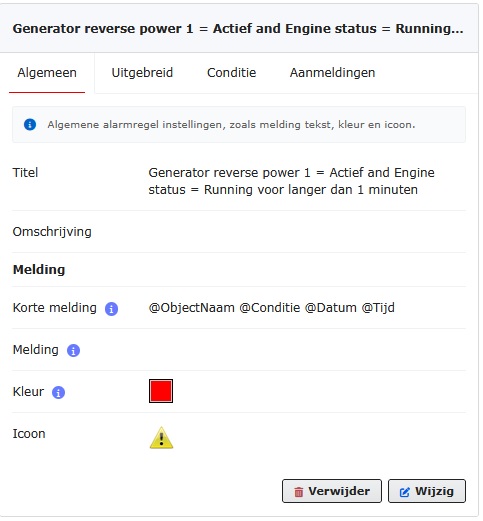
Step 2 – General settings

Short message – this text is used as the subject of an SMS, email, or Telegram message.

Message – this text is used as an additional description alongside the short message (the subject) in an email or Telegram message. It contains supplementary information that does not fit in the subject line of an email or Telegram message. When sending a message via SMS, this additional text cannot be used because the maximum length of an SMS is 160 characters.

Color – alarm conditions can optionally be displayed in graphs.

For example, if the condition is “fuel < 25%”, a line will appear in the graph at 25%. The color of this graph line can be set here.

Icon – this icon is displayed on the map when the alarm conditions are met.

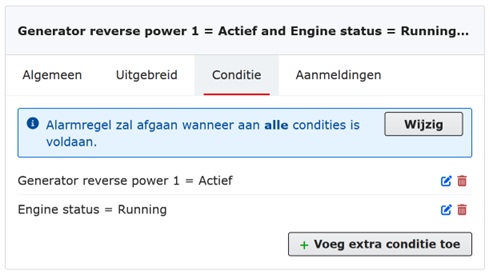
Step 3 – Create condition

Condition explanation

With the button, you can set whether “All” or “One or more conditions” must be met. In this example, it is set to “All.”

With the button, new conditions can be added.

Conditie
Uitbeidingen

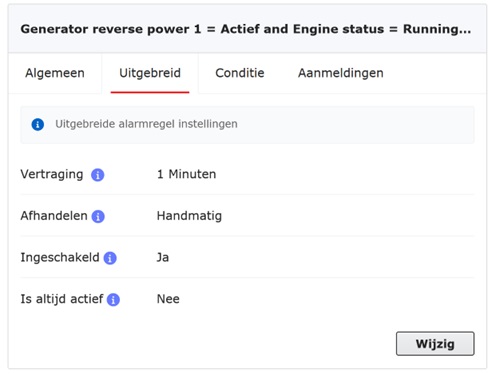
Step 4 – Advanced

Delay – the time in minutes that the conditions must be met before the alarm becomes active.

Handling – if the condition is no longer met, the alarm notification can be handled as follows:

Manual – the notification must be acknowledged manually by a user. Once handled, the notification is moved to the history.
Automatic – the notification is handled automatically by the system and moved to the history.
Delete – the notification is completely removed.

Enabled – the notification can be disabled. When disabled, the system will not generate any notifications.

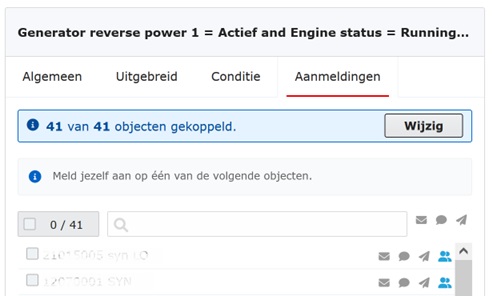
Step 5 – Subscriptions – selection of objects for which these alarm condition(s) are configured

Subscription explanation

On this tab, the system displays the objects to which the alarm rules can be applied. From these objects, you can select the ones that will be subscribed to the selected alarm rules.

Aanmeldingen
Aanmelding SMS email Telegram

An alarm notification can be sent via email, SMS, and/or Telegram.

An address book is also available. General details of customers and employees are recorded here once. A person listed in the contact directory can easily be linked to an alarm notification.

Would you like to know more about the contact directory? Click here.

Would you like to learn more about using Telegram? Click here.

Companies we've helped

This site is registered on wpml.org as a development site. Switch to a production site key to remove this banner.